
GridStreamr for iPhone and iPad — IPTV Player with Smart Collections
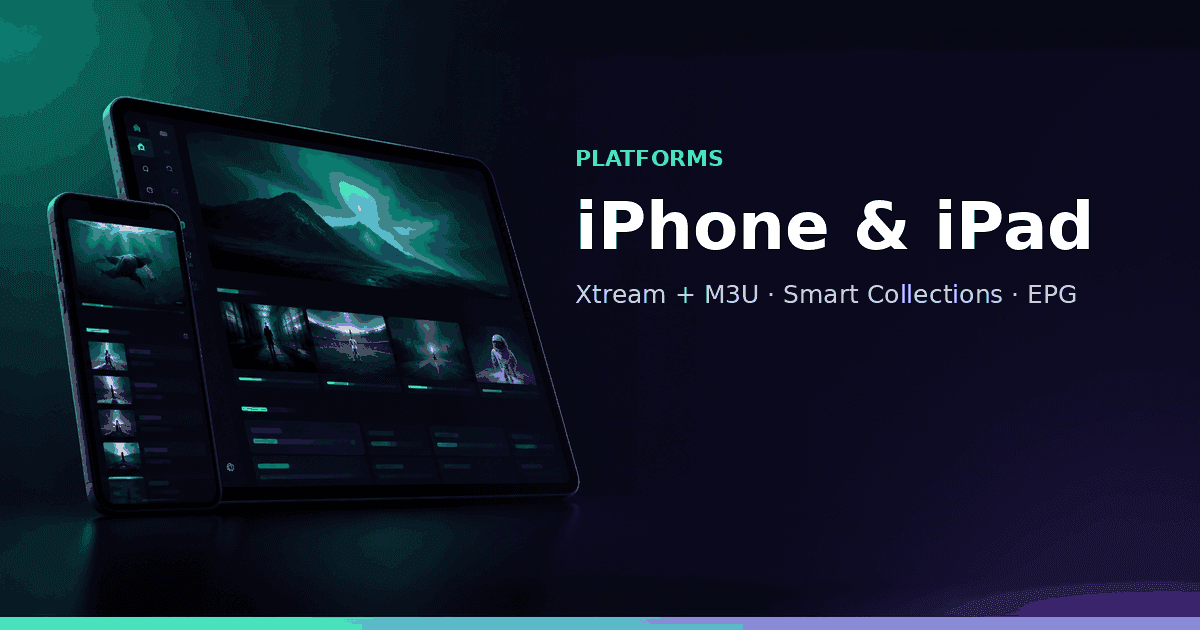
Run GridStreamr on iPhone and iPad: Xtream Codes and M3U, Smart Collections, Global EPG, Premium TimeShift, MultiView, Jellyfin and synced libraries — Apple TV support is on the way.
Responsible use
GridStreamr does not provide IPTV channels, VOD, or playlists. You bring your own authorized Xtream Codes or M3U sources. You are responsible for complying with applicable terms, licenses, and local law.
iPhone households are underserved by many “TV-first” IPTV apps that never ship a proper iOS client. GridStreamr for iPhone and iPad is a full curation + playback experience: Xtream Codes, M3U, Smart Collections, Global EPG, and Premium features like TimeShift, MultiView, Jellyfin and Home DVR control — synced with Android when your household mixes platforms.
Install and sign in
- Download GridStreamr from the App Store on iPhone or iPad
- Create an account or sign in
- Optional: start the 7-day Premium trial from pricing (no card required in current trial flows — confirm in-app)
- Tap Add Source to connect your first playlist
Step-by-step: How to set up IPTV on iPhone. Roundup context: Best IPTV app for iPhone.
What works great on iOS today
| Area | iPhone / iPad support |
|---|---|
| Xtream Live / VOD / Series | ✓ |
| M3U / M3U8 import | ✓ |
| Smart Collections | ✓ (limits by plan) |
| Global EPG mapping | ✓ |
| Favorites + continue watching sync | ✓ |
| Premium TimeShift | ✓ (provider archive) |
| Multi-audio / subtitles / OpenSubtitles | ✓ Premium |
| MultiView (up to 4 live) | ✓ Premium |
| Sports Hub | ✓ Premium — scores and the matching channel |
| Jellyfin | ✓ Premium |
| Home DVR schedule + Cloud Relay control | ✓ Premium |
| Parental PIN on collections | ✓ |
| Secure playlist sharing | ✓ |
iPad benefits from larger grids for EPG browsing and collection editing — same account as iPhone.
Where you can watch today
| Device | Availability |
|---|---|
| iPhone / iPad | Available now |
| Android phone / tablet | Available now |
| Android TV / Google TV | Available now — see Android TV |
| Apple TV (tvOS) | Coming soon |
| CarPlay | Not supported |
| Android Auto | Aftermarket head units only (not iPhone) |
| Android Automotive | Not supported |
Sports Hub is on iPhone and iPad with Premium. Follow a team or player, see the day's scores and standings, then open a matching channel from your own playlist. Sports Hub is coming soon on Apple TV (tvOS) and Android TV.
If your living room is Apple TV today, set up your library on iPhone, then AirPlay/cast when your network allows, or share a secure playlist into a TV app you already use. Apple TV (tvOS) is coming soon — until then, iPhone plus Android TV (or a secure share) covers the household.
Free vs Premium on iPhone
| Item | Free | Premium |
|---|---|---|
| Smart Collections | 1 (20 entries) | Unlimited (2,000 each) |
| EPG | Current / next | Full-day timeline |
| TimeShift | — | ✓ |
| MultiView | — | ✓ |
| Jellyfin / DVR control | — | ✓ |
| AI live enrichment | — | ✓ + credits |
| TMDB / OpenSubtitles hooks | Limited / key-based as documented | Full Premium player stack |
iPhone is often the curator device even when Android TV is the lean-back screen — Premium unlocks the tools that make that split workflow worth it.
iPhone as the household hub
A common GridStreamr pattern:
- Add sources on iPhone — paste long URLs with the keyboard, not a TV remote
- Build Smart Collections — Sports, Kids, News
- Map Global EPG and optional AI logos / names
- PIN-lock Adult via parental controls
- Share virtual credentials to TiviMate / Smarters on TV sticks, or sync to Android TV GridStreamr
- Schedule Home DVR jobs from the phone, optionally via Cloud Relay
Feature deep-dive: Playlist control plane.
Playback tips specific to iOS
- Prefer Wi‑Fi 5 GHz for HD/4K; cellular works but burns data and may hit provider geo rules
- Disable aggressive Low Power Mode if background network drops mid-VOD
- For MultiView, start with two panes before four — thermal and bandwidth add up
- External audio: Bluetooth headphones work; test multi-audio language tracks on Premium international feeds
- Keep iOS updated — player stacks track OS media changes over time
Privacy and sharing on iPhone
Do not AirDrop your real Xtream password. Use Manage Shares to mint virtual credentials scoped to a collection. Revoke from iPhone when a device leaves the house. Details: Secure playlist sharing.
Accessibility
GridStreamr aims for usable Dynamic Type and VoiceOver on primary navigation and player chrome. Collection names should be readable strings (not emoji-only) for VoiceOver users. Report gaps via in-app support channels listed in documentation.
iPad-specific notes
- Landscape EPG scanning is faster for sports nights
- Split multitasking: keep a browser tab with provider status pages beside the player when troubleshooting
- Shared iPads in families should use PIN-locked collections plus an OS passcode
Migrating from another iOS IPTV app
- Export or copy your Xtream host/user/pass or M3U URL from the old app (or provider email)
- Add the same source in GridStreamr — do not buy a new illegal line
- Recreate favorites as a Smart Collection instead of re-favoriting 200 channels blindly
- Map EPG once; export XMLTV on shares if other apps remain in the house
- Remove the old app only after a week of stable playback
Content responsibility
iOS GridStreamr is a player and manager. You are responsible for:
- Lawful access to streams
- Provider terms when sharing
- Local regulations
We do not provide channels, catch-up libraries or VOD catalogs.
Notifications and EPG on the go
iPhone is where programme alerts matter: you are not always in front of the TV when a match moves. Pair Global EPG mappings with in-app notification features where enabled so you get reminded before kickoff. Exact alert UX ships under EPG notification settings — treat phone as the pager and Android TV as the screen.
When travel Wi‑Fi is hostile, download is not how live IPTV works — plan offline differently (DVR files on LAN later, or provider catch-up via TimeShift when you regain a clean network).
Storage, cellular and battery
IPTV apps are network-bound more than storage-bound, but:
- Large M3U refreshes temporarily use memory — force-quit and retry on older phones if parse stalls
- Cellular HD can exhaust hotspot caps quickly; prefer SD backups in a travel Smart Collection
- Background App Refresh helps resume sync; Low Power Mode can interrupt long VOD
Build a Travel Lite collection with twenty reliable streams instead of dragging the full warehouse on hotel Wi‑Fi.
Getting started tonight
- Install from the App Store
- Add Xtream or M3U
- Create one Smart Collection with your daily channels
- Attach Global EPG
- Try Premium trial if you need TimeShift or MultiView
IPTV that respects the iPhone
Curate Smart Collections on iOS — sync with Android, share securely, keep Apple TV expectations honest.
Related reading
- Setup IPTV on iPhone
- IPTV player
- Smart Collections
- Android TV
- vs TiviMate (iOS gap vs Android-only apps)
- Documentation
Frequently asked questions
Does GridStreamr work on iPhone and iPad?
Yes. GridStreamr is available on iOS for iPhone and iPad with Xtream Codes, M3U, Smart Collections, EPG and Premium features. Sign in with the same account you use on Android for synced libraries.
Is there a GridStreamr Apple TV app?
Apple TV support is on the way. For living-room lean-back today, use Android TV / Google TV, or export a secure Smart Collection share into another TV player.
Does GridStreamr support CarPlay?
No. CarPlay is not supported. In-car playback is available as Android Auto on AOSP aftermarket head units only — not on iPhone CarPlay.
Can I add Xtream and M3U on iPhone?
Yes. Add Source supports Xtream (host, username, password) and M3U / M3U8 playlist URLs. Free includes limited sources; Premium unlocks up to 15 Smart Collections and full player features.
Does the iPhone app provide IPTV channels?
No. You connect authorized sources you already pay for. GridStreamr is the player and organizer, not a content provider.
Is MultiView available on iPhone?
Yes on Premium for iOS and Android phones — watch up to four live streams in one session when your device and network can handle it.
Get started
Download gridstreamr free
Add your sources, build a Smart Collection, then upgrade to Premium in-app when you need more.
Related
Keep reading
GridStreamr on Fire TV
GridStreamr on Fire TV — practical GridStreamr guidance for fire tv iptv app. Bring your own Xtream or M3U sources; we handle organisation, EPG and playback tools.
Readarrow_forwardGridStreamr DVR on Linux
GridStreamr DVR on Linux — practical GridStreamr guidance for iptv dvr linux. Bring your own Xtream or M3U sources; we handle organisation, EPG and playback tools.
Readarrow_forwardGridStreamr DVR on Mac
GridStreamr DVR on Mac — practical GridStreamr guidance for iptv dvr mac. Bring your own Xtream or M3U sources; we handle organisation, EPG and playback tools.
Readarrow_forward