
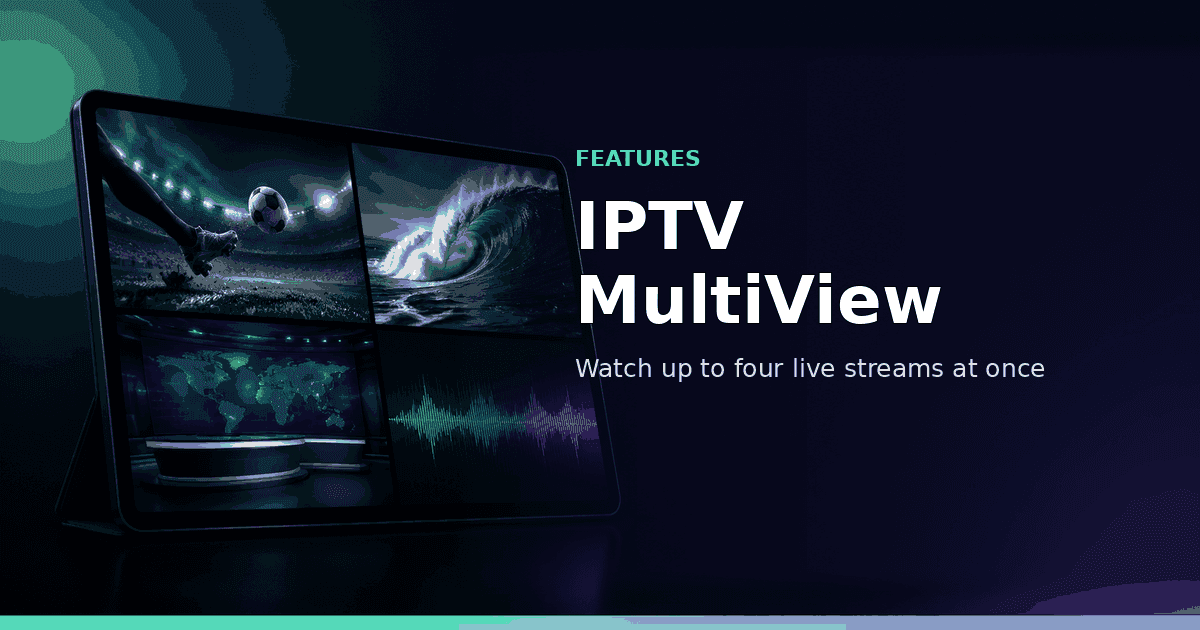
IPTV MultiView — Watch Up to Four Live Streams at Once
Premium MultiView for sports, news and multi-camera setups: create named sessions on mobile, choose Dual / Main+2 / Quad layouts, focus audio per pane and launch on Android TV.
Responsible use
GridStreamr does not provide IPTV channels, VOD, or playlists. You bring your own authorized Xtream Codes or M3U sources. You are responsible for complying with applicable terms, licenses, and local law.
Sports Sundays, election nights, trading desks, multi-language feeds — sometimes one live channel is not enough. MultiView is GridStreamr's Premium split-screen mode: up to four live streams in a layout you save as a named session, configured on your phone and launched on Android TV without rebuilding the grid every time.
Why MultiView is built around sessions
Randomly pinning four channels every match day gets old fast. MultiView uses sessions:
- A name you recognize ("Sunday Sports", "News Desk", "F1 + onboard")
- A layout that defines how many panes and how they arrange
- Slots filled with channels from any Xtream source or Smart Collection
- Sync to your GridStreamr account so TV and phone stay aligned
Create the session once on mobile. On the sofa, open MultiView on Android TV, pick the session, and every pane starts.
Layouts: Dual, Main + 2, Quad
When you create or edit a session you choose one of three layouts:
| Layout | Streams | Best for |
|---|---|---|
| Dual | 2 | Head-to-head matches, two news feeds |
| Main + 2 | 3 | One hero feed + two side monitors |
| Quad | 4 | Full sports grid or news wall |
You can change layout later. Reducing slot count clears channels that no longer fit — edit on mobile before kickoff if you need a different shape.
How to create your first session
- Open the MultiView tab in GridStreamr on iPhone or Android.
- Tap New Session and name it.
- Choose Dual, Main + 2, or Quad.
- Tap each slot and assign a live channel from Xtream or a Smart Collection.
- Save — the session syncs to your account.
- On Android TV, open MultiView, select the session, and watch.
Video walkthrough: MultiView setup. Longer narrative: MultiView blog post.
Interacting with the grid
Once a session is playing:
- Tap / select a pane to focus it — that stream's audio becomes audible; others mute
- Long-press a pane on mobile to swap its channel without ending the session
- D-pad navigation on Android TV moves focus between panes
- Rearrange streams from the session editor when the permanent order should change
Each pane is independent for channel identity; focus is the only shared "which audio" rule. That keeps living-room volume sane when four HD streams are open.
Bandwidth and device reality
Four concurrent HD streams are demanding:
- Prefer strong Wi-Fi or Ethernet to the TV / phone
- Expect higher data use on mobile networks — MultiView is a home Wi-Fi feature first
- If a pane buffers, focus a lower-bitrate variant of the same channel when your provider offers one
- Close other heavy downloads on the LAN during marquee sports
GridStreamr cannot invent bandwidth. If your ISP or provider concurrent-stream policy caps you below four, the UI cannot override that.
Great use cases
Sports — four matches, or one match plus three alternate camera / team feeds when your lineup includes them.
News — monitor international desks without channel surfing every two minutes.
Multi-language — same event on English / Spanish / local commentary side by side.
Markets / weather — keep specialty channels visible while a main programme runs in the hero pane (Main + 2).
Home monitoring — where your authorized sources include camera-style live URLs, keep them visible while watching other content (always respect privacy and law).
MultiView vs TimeShift vs Home DVR
| Need | Feature |
|---|---|
| Several live channels at once | MultiView (split-screen Dual / Main+2 / Quad) |
| Replay a missed live programme | TimeShift |
| Record for later on your disk | Home DVR |
GridStreamr does not offer picture-in-picture (PiP). MultiView is an in-app split-screen player for up to four live streams — not an OS floating overlay.
MultiView does not scrub archives inside each pane. For catch-up, leave MultiView and open TimeShift on a single channel.
Premium, platforms and limits
| Item | Detail |
|---|---|
| Tier | Premium only (7-day trial available) |
| Mobile | iOS and Android — create / edit / play sessions |
| TV | Android TV — launch synced sessions |
| Max streams | 4 (Quad) |
| Sources | Your Xtream + Smart Collection live channels |
MultiView on Apple TV will arrive with Apple TV support. CarPlay and Android Automotive aren't supported.
Tips for a reliable sports setup
- Build a Sports Smart Collection with only the channels you actually use in MultiView — faster slot picking.
- Name sessions by day or league, not generic "Sports 1".
- Pre-assign slots an hour before kickoff; sync is already done when you sit down.
- Keep a Dual session for rivalry games when Quad is overkill.
- If one provider feed dies, long-press that pane and swap to the backup channel from another source in the same collection.
Compliance note for shared screens
MultiView still uses your authorized streams. Do not treat a Quad layout as a way to redistribute content you are not allowed to share. For family access on other devices, prefer secure playlist sharing with virtual credentials rather than leaving a logged-in phone unattended.
Building sessions from Smart Collections
The fastest MultiView setups start from a curated list, not the raw provider tree:
- Create a Sports or News Smart Collection with only MultiView candidates
- Rename channels so slot picking is obvious on a phone screen
- Attach EPG so you can confirm what is actually airing before you pin a pane
- Open MultiView → New Session and assign from that collection
- Optionally share the same Sports collection to a spare TV running TiviMate while you keep MultiView on the main screen
Curating first means you never scroll past hundreds of dead regional variants while the match is already kicking off.
Network planning for Quad days
Treat Quad MultiView like four simultaneous HD clients on your LAN:
- Prefer 5 GHz Wi-Fi or Ethernet for the TV; keep phones on a non-congested band
- Pause large NAS syncs and game downloads during marquee events
- If your provider enforces a concurrent stream limit, MultiView panes count toward it — check your plan before blaming the app
- When one pane buffers chronically, swap that slot to a lower-bitrate variant or a backup source in the same collection
- On mobile data, stick to Dual; Quad is a home-network feature for most users
GridStreamr can surface four players; it cannot raise your ISP or provider caps.
Session hygiene
- Delete stale sessions after a tournament ends so the TV list stays short
- Keep one template Dual session with empty-friendly names you reuse weekly
- After a provider lineup refresh, open each saved session once and replace any dead slots
- Name sessions with dates when they are one-offs (
UCL Final 2026) so you know what to purge later
Getting started
- Start Premium or the trial
- Confirm live channels play normally in the IPTV player
- Create a Dual session with two sports channels
- Launch it on Android TV
- Expand to Quad once bandwidth looks solid
Build your first MultiView session
Premium feature. Subscribe on iOS or Android — 7-day trial available on mobile. Android TV requires Premium.
Related reading
Frequently asked questions
How many streams can MultiView show?
Up to four simultaneous live streams in the Quad layout. Dual (2) and Main + 2 (3) layouts are also available. Layouts can be changed later in the session editor.
Is MultiView included in Free?
No. MultiView requires Premium. Start a 7-day free trial in-app with no credit card required.
Can I configure sessions on my phone and watch on the TV?
Yes. Create and edit named sessions on iOS or Android. Saved sessions sync to your account and appear in MultiView on Android TV.
Which audio plays when multiple panes are open?
The focused pane plays audio; other panes mute automatically. Tap or select a pane to switch focus.
Does MultiView work with Smart Collections?
Yes. Assign channels from Xtream sources or Smart Collections into each slot. GridStreamr does not provide the streams — you use sources you already connected.
Does MultiView include catch-up or VOD?
MultiView is for live streams. Use TimeShift for catch-up on a single channel, or the normal player for movies and series.
Get started
Download gridstreamr free
Add your sources, build a Smart Collection, then upgrade to Premium in-app when you need more.
Related
Keep reading
Sports Hub: Scores, Standings, and the Match on Your Playlist
Premium Sports Hub on iPhone, iPad, and Android follows teams, players, and leagues, then opens a matching channel from your own IPTV playlist. Apple TV (tvOS) and Android TV are coming soon.
Readarrow_forwardAI Channel Categorization
AI Channel Categorization — practical GridStreamr guidance for organize iptv channels ai. Bring your own Xtream or M3U sources; we handle organisation, EPG and playback tools.
Readarrow_forwardEPG Notification Alerts
EPG Notification Alerts — practical GridStreamr guidance for iptv epg notifications. Bring your own Xtream or M3U sources; we handle organisation, EPG and playback tools.
Readarrow_forward