
Cloud Relay for Home IPTV DVR — Manage Jobs Away from Home
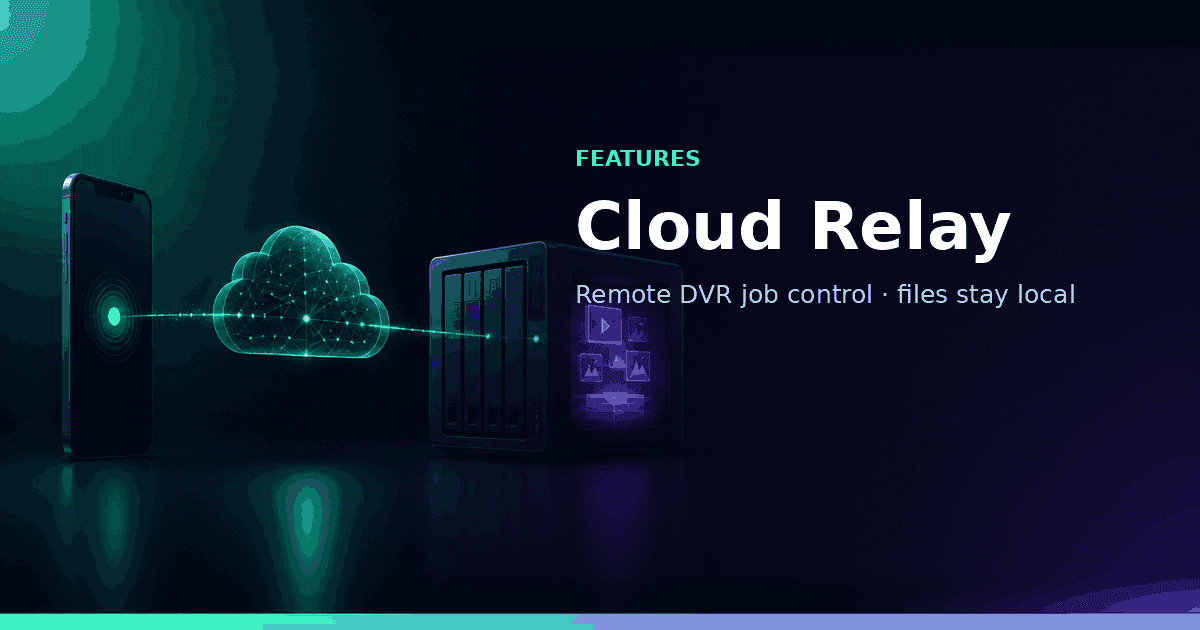
Keep Home DVR fully private on your LAN — no inbound ports — while Cloud Relay lets you schedule, monitor and cancel jobs from the app. Control only; playback stays off the tunnel.
Responsible use
GridStreamr does not provide IPTV channels, VOD, or playlists. You bring your own authorized Xtream Codes or M3U sources. You are responsible for complying with applicable terms, licenses, and local law.
Self-hosted Home DVR only works for you on the road if you can reach it safely. Cloud Relay is the security difference: you keep the DVR fully private on your LAN — never opened to the internet — while the phone app still runs almost every remote operation you need. The host opens an outbound secure tunnel for control only. Playback stays off that path on purpose.
Why that matters for security
Most remote DVR setups force a bad choice: either you only schedule on the couch, or you port-forward the dashboard and hope nothing finds port 8787. Cloud Relay removes that trade-off.
- Your DVR never needs inbound ports or a public IP for job control
- The recorder initiates an outbound connection — nothing listens for the world
- You still schedule, monitor, cancel and check host online from cellular or hotel Wi‑Fi
- Playing content does not ride the Relay control tunnel; off-LAN Play uses restream’s outbound cloudflared (or a URL you configure)
That is the whole point: full privacy for the host, full job operations from the app, and Play that never treats Relay as a video CDN.
The problem Cloud Relay solves
Typical home IPTV DVR setups fail remotely for boring networking reasons:
- Phone is on hotel Wi‑Fi; NAS is on
192.168.1.50 - mDNS “Find on Wi‑Fi” cannot cross the internet
- Opening port
8787to the world is a security foot-gun - Carrier CGNAT blocks classic port forwards entirely
Cloud Relay sidesteps inbound exposure: the DVR initiates an outbound connection that GridStreamr uses for control messages only. Your recordings path never becomes a public media CDN.
What you can do remotely with Relay
After Relay is linked — from the GridStreamr app, away from home:
- Schedule a one-time or recurring job from a Smart Collection channel or title
- See job status (queued, running, failed, completed)
- Cancel a mistaken sports block before it fills the disk
- Confirm the DVR host is online while you are traveling
What Relay deliberately does not do:
- Carry recording video on the Relay control path (Play off-LAN uses restream’s outbound cloudflared, or a Cloudflare / Tailscale / custom URL you configure)
- Turn your NAS into a public streaming endpoint
- Upload media into a GridStreamr cloud locker
Managed *.trycloudflare.com Quick Tunnels are best-effort (hostname changes each start; Cloudflare treats them as testing). A named Cloudflare tunnel, Tailscale, or your own URL is the stable path for daily library Play.
Prerequisites
| Requirement | Detail |
|---|---|
| GridStreamr DVR installed | Mac, Windows, Linux service or Docker |
| Premium | Pairing + job management entitlement |
| Dashboard reachable locally first | Default http://YOUR-LAN-IP:8787 |
| App link | Settings → DVR → Cloud after enabling Relay in dashboard |
| Stable host uptime | NAS or always-on PC recommended |
Download installers: /download/dvr. NAS walkthrough: Record IPTV on Docker and Synology.
Enable Cloud Relay step by step
- Install and start GridStreamr DVR on your host
- Open the browser dashboard on the LAN
- Sign in / pair from the GridStreamr mobile or TV app once on Wi‑Fi (Find on Wi‑Fi or manual URL)
- In the dashboard, enable Cloud Relay (wording may read Cloud / Relay under DVR settings)
- In the app: Settings → DVR → Cloud and complete the link
- Switch your phone to cellular data and confirm the DVR still appears for job management
- Create a short test job, then cancel it — proves the control path works
If the host disappears remotely, check that the DVR process is running, the host has outbound HTTPS, and the disk is not full (some hosts throttle services when storage alarms fire).
Architecture in plain language
[Phone app] --control--> [GridStreamr relay] <--outbound-- [Your DVR host]
                              |
                         job commands only
[Your disk] <--- FFmpeg writes recordings locally (never via relay as a CDN)
- Outbound from home → fewer router rules
- Control plane for schedules → not media bytes
- Your FFmpeg still pulls the live stream from your provider using credentials/paths already configured for that job
Provider geo rules and stream availability still apply. Relay cannot invent a working upstream if the panel rejects the connection from your home IP.
Cloud Relay vs port forwarding vs VPN
| Approach | Remote job control | Remote file watch | Router changes | Risk profile |
|---|---|---|---|---|
| Cloud Relay | ✓ | — | Minimal | Lowest for control-only |
| Port forward dashboard | ✓ (if exposed) | Maybe | Inbound ports | Higher — harden auth/TLS |
| VPN home (WireGuard, Tailscale, etc.) | ✓ (as LAN) | ✓ | VPN setup | Excellent all-purpose |
| Public reverse proxy you run | Optional | Optional | DNS + TLS | You own hardening |
Many power users enable Relay for quick schedules and Tailscale/WireGuard for watching files on the laptop. That combination avoids treating GridStreamr as a video CDN while keeping travel workflows sane.
Security expectations
Cloud Relay exists so your DVR can stay fully private — no inbound exposure — while you still run remote job operations (everything except playing the content). Still practice basics:
- Keep the DVR host OS patched
- Use a strong GridStreamr account password / biometric lock on the phone
- Do not paste dashboard URLs into public forums
- Prefer Docker user permissions that cannot write outside recordings/data mounts
- Remember: anyone with your unlocked phone can schedule jobs if the app is signed in — use OS lock screens
Relay does not replace physical security of the NAS.
Storage and failure modes while you are away
Remote scheduling increases the chance you fill a disk without noticing. Before travel:
- Check free space on the recordings volume
- Prefer shorter test windows the first week you use Relay
- Avoid stacking four concurrent HD jobs on a weak ARM NAS
- Set a household rule: cancel failed jobs that retry forever
Common remote failures:
- Provider stream drop — job fails; check dashboard logs when home
- Host asleep — desktops need “prevent sleep” or use NAS/Docker always-on
- Docker updated and container not restarted — enable restart policies
- Clock / TZ wrong — set
TZin Compose so schedules match your guide
How Relay fits TimeShift and Smart Collections
- TimeShift — provider archive; no DVR host required
- Home DVR + Relay — your files; schedule from anywhere
- Smart Collections — record the curated Sports list, not a 3,000-channel dump
Travel scenario: match starts at 3am local; you schedule from the hotel using Relay; morning-you watches on the LAN or VPN. Missed kickoff without DVR? Use TimeShift if the Xtream archive still holds the programme.
Free vs Premium
| Item | Free | Premium |
|---|---|---|
| Download DVR binaries | ✓ | ✓ |
| Pair + schedule jobs | — | ✓ |
| Cloud Relay job control | — | ✓ (with paired DVR) |
| Content provided by GridStreamr | Never | Never |
Getting started
- Install DVR from /download/dvr
- Pair on Wi‑Fi
- Enable Cloud Relay in dashboard + app Cloud settings
- Test a cancelable job on cellular
- Document your VPN plan if you also need remote playback
Schedule IPTV recordings from anywhere
Premium Home DVR + Cloud Relay for job control — files stay on hardware you own.
Related reading
Frequently asked questions
What does Cloud Relay do?
It lets you keep Home DVR fully private on your LAN — no inbound ports or public exposure — while still managing jobs from the app away from home. The DVR opens an outbound secure tunnel for control messages only.
Why does Cloud Relay matter for security?
Without it, remote access usually means port-forwarding the DVR dashboard to the internet. With Relay, the recorder stays unexposed; you still schedule, monitor, cancel and check host status from your phone.
Can I watch recordings over Cloud Relay?
Relay itself never carries video — it is still not a streaming CDN. Off-LAN Play uses the same outbound cloudflared tunnel as live restream (or a Cloudflare, Tailscale, or custom URL you already configured), started automatically if needed. The first Play can take several seconds while the hostname publishes.
Is Cloud Relay a cloud DVR locker?
No. Recordings stay on storage you configure on Mac, Windows, Linux or Docker. GridStreamr does not upload finished recordings to a cloud vault via Relay.
Do I need Premium for Cloud Relay?
Home DVR pairing and job management require Premium. Cloud Relay is part of that remote DVR workflow — enable it in the DVR dashboard and link under Settings → DVR → Cloud in the app.
Is port forwarding required?
No for Cloud Relay. The host only needs outbound HTTPS. Port forwarding is only relevant if you choose to expose your own HTTP endpoint for file access — optional, and your responsibility to secure.
Does Cloud Relay provide IPTV streams to record?
No. DVR records from Smart Collections backed by your authorized Xtream or M3U sources. GridStreamr does not supply content.
Get started
Download gridstreamr free
Add your sources, build a Smart Collection, then upgrade to Premium in-app when you need more.
Related
Keep reading
Sports Hub: Scores, Standings, and the Match on Your Playlist
Premium Sports Hub on iPhone, iPad, and Android follows teams, players, and leagues, then opens a matching channel from your own IPTV playlist. Apple TV (tvOS) and Android TV are coming soon.
Readarrow_forwardAI Channel Categorization
AI Channel Categorization — practical GridStreamr guidance for organize iptv channels ai. Bring your own Xtream or M3U sources; we handle organisation, EPG and playback tools.
Readarrow_forwardEPG Notification Alerts
EPG Notification Alerts — practical GridStreamr guidance for iptv epg notifications. Bring your own Xtream or M3U sources; we handle organisation, EPG and playback tools.
Readarrow_forward