
MultiView: Watch Up to Four Live Streams at Once
GridStreamr's new MultiView feature lets you configure split-screen sessions on your phone and instantly watch up to four live streams simultaneously on mobile or Android TV — perfect for sports, news and multi-camera setups.
Responsible use
GridStreamr does not provide IPTV channels, VOD, or playlists. You bring your own authorized Xtream Codes or M3U sources. You are responsible for complying with applicable terms, licenses, and local law.
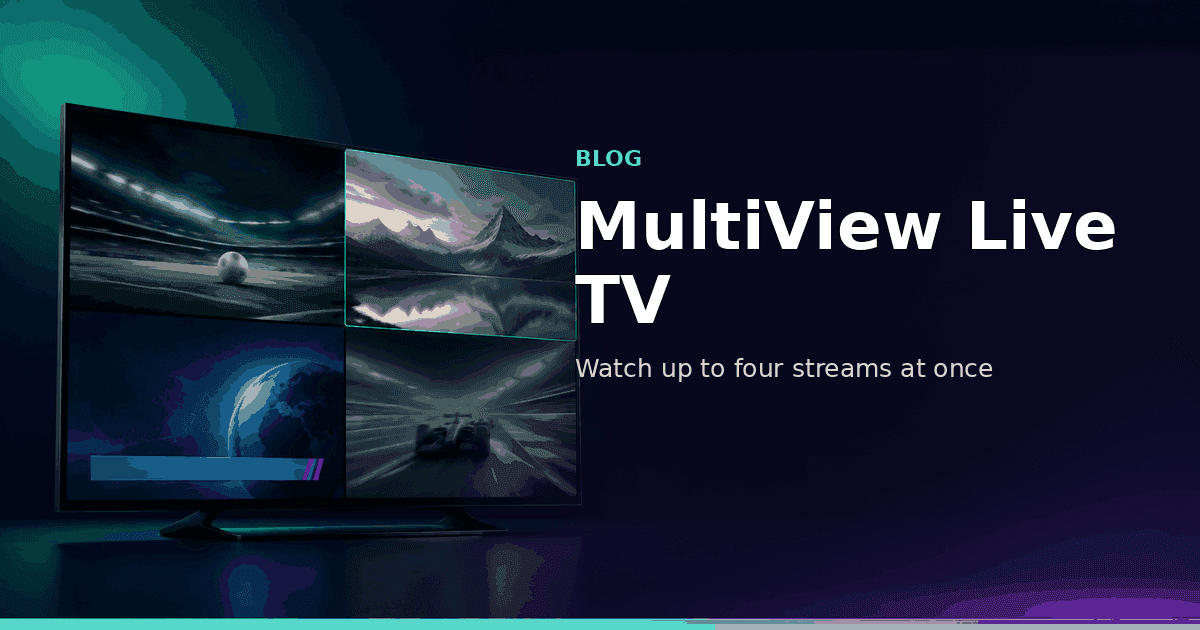
MultiView is a Premium feature that lets you watch up to four live channels at once in a split-screen layout — not picture-in-picture, but dedicated panes you control on screen. You configure sessions on your phone and launch them on Android TV, so your big screen always has the right streams ready without extra setup.
Choosing your layout
When you create or edit a session, you pick one of three display layouts. The layout sets how many slots you get and how they're arranged on screen.
Dual 2 streams
Two equal-width panes side by side. Ideal for head-to-head match-ups or dual-language feeds.
Main + 2 3 streams
One large primary pane (left) with two smaller secondary panes stacked on the right.
Quad 4 streams
A 2×2 equal grid — maximum density. Best for sports dashboards or monitoring multiple cameras.
You can switch a session's layout anytime from the session editor on your phone. Changing the layout adjusts slot count — if you reduce slots, channels in removed positions are cleared.
How MultiView works

MultiView is built around sessions — named groups of up to four channels you want to watch together. You create and manage sessions on iOS or Android, then launch any saved session from the MultiView tab on mobile or directly from MultiView on Android TV.
- Open the MultiView tab in GridStreamr on your phone.
- Tap 'New Session' and give it a name (e.g. 'Sunday Sports', 'News Desk').
- Choose a layout: Dual (2 streams), Main + 2 (3 streams), or Quad (4 streams).
- Tap each slot to assign a channel from any of your Xtream sources or Smart Collections.
- Save the session — it syncs to your account instantly.
- On Android TV, open MultiView. Select a saved session and all streams start in your configured layout.
Interacting with the grid
Once a session is playing, each pane is independent. Tap or click any pane to focus it — that stream's audio plays and the others mute. On Android TV, navigate between panes with the directional pad. Long-press a pane on mobile to swap its channel without ending the session.
- Up to 4 simultaneous streams (Quad layout) from any Xtream or Smart Collection source.
- Focused pane plays audio; all others mute automatically.
- Swap individual channels without rebuilding the whole session.
- Sessions sync across devices — configure on phone, watch on TV.
- Create as many named sessions as you need for different use cases.
- Change a session's layout anytime from the session editor on mobile.
Great use cases for MultiView
- Sports: follow four matches or four camera angles of the same event simultaneously.
- News: monitor multiple news channels in parallel without switching.
- Multi-language: watch the same event on feeds in different languages side by side.
- Home monitoring: keep live camera streams visible while watching other content.
Ready to try MultiView?
Update GridStreamr, create your first session on mobile, and launch it on Android TV.
Get started
Download gridstreamr free
Add your sources, build a Smart Collection, then upgrade to Premium in-app when you need more.
Related
Keep reading
Jellyfin Integration: Stream Your Self-Hosted Library from GridStreamr
GridStreamr now connects to your Jellyfin media server. Browse movies and series with rich metadata, switch subtitles and audio tracks live, and resume watching on iOS, Android and Android TV — all from one app.
Readarrow_forwardHow to Catch Up on Live TV with TimeShift in GridStreamr
TimeShift lets you browse and watch past live TV programmes, no recording needed. Here's how it works in GridStreamr and what your provider needs to support.
Readarrow_forwardSelf-Hosting IPTV with Jellyfin — One Client, Two Libraries
How you can run Jellyfin for your file library beside IPTV Smart Collections in GridStreamr Premium — without treating Jellyfin as an Xtream panel.
Readarrow_forward