
Android Auto AOSP IPTV Setup Guide — Code 2611137
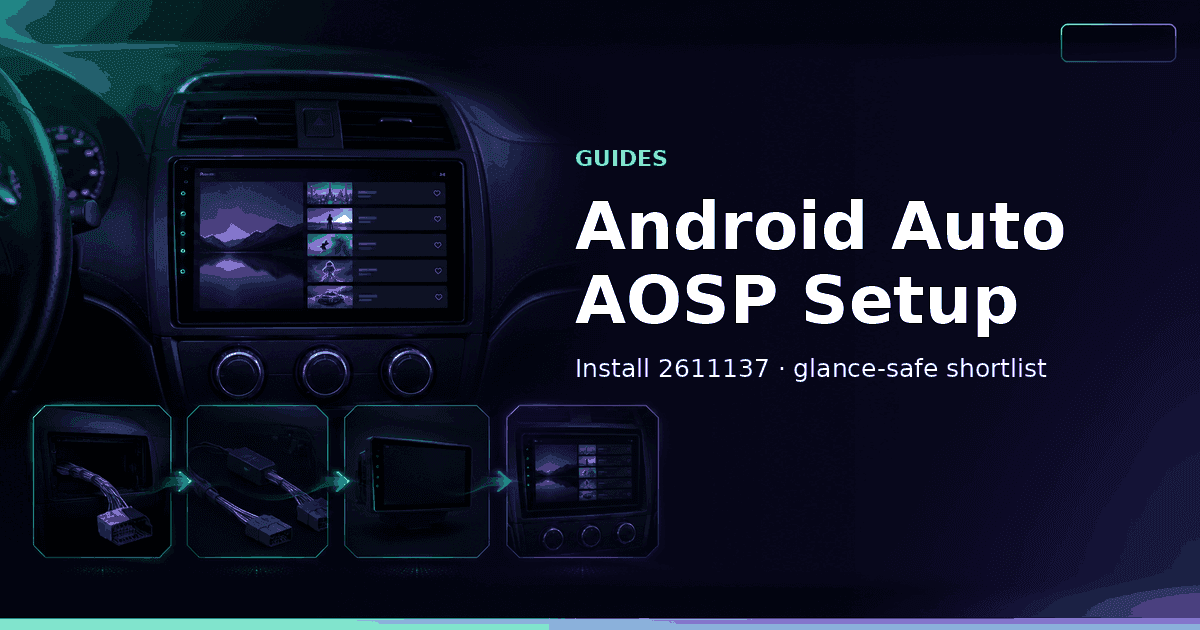
Install GridStreamr on AOSP aftermarket Android Auto head units with Download App code 2611137, sync your phone Smart Collections and configure a glance-safe car lineup — not CarPlay or AAOS.
Responsible use
GridStreamr does not provide IPTV channels, VOD, or playlists. You bring your own authorized Xtream Codes or M3U sources. You are responsible for complying with applicable terms, licenses, and local law.
This guide gets GridStreamr running on AOSP aftermarket Android Auto head units using install code 2611137. It also draws hard lines: not CarPlay, not factory Android Automotive (AAOS). If those are what you have, stop here and use the phone/tablet apps instead.
Confirm you have the right hardware
You want:
- An aftermarket head unit that supports Android Auto-style AOSP app download flows
- Ability to install via Download App codes /
aftv.newslinks - A phone with GridStreamr already set up
You do not want to assume support on:
- OEM AAOS factory systems with locked app stores
- CarPlay-only vehicles
- Random unsigned APKs from forums pretending to be “Android Auto IPTV”
Platform overview: Android Auto AOSP.
Step 0 — Curate on the phone (mandatory)
- Install GridStreamr on Android or iOS
- Add Xtream and/or M3U
- Create a Smart Collection named
CarorTravel - Add 10–30 stable channels (news, music TV, one sports feed — not the entire dump)
- Heart the ones you will actually tap with gloves on
- Map basic EPG so titles are readable
- PIN-lock Adult collections on the phone account
Phone walkthrough: Setup IPTV on Android.
Step 1 — Install on the head unit
- On the head unit, open the Download App / downloader utility your firmware ships with
- Enter code 2611137 or navigate to aftv.news/2611137
- Install GridStreamr when prompted
- Launch the app from the Android Auto / app list as your unit exposes it
Firmware UIs differ; the constant is the 2611137 code path documented across GridStreamr platform pages.
Install troubleshooting
| Symptom | What to try |
|---|---|
| Code not found | Confirm downloader network access; retry aftv.news/2611137 |
| Install blocked | Unit may be locked down / not true AOSP aftermarket — AAOS-like locks are unsupported |
| App missing after reboot | Re-add via the same code; check if the unit wipes sideloaded apps |
| Wrong app appears | Verify you typed 2611137, not a different IPTV code from forums |
Step 2 — Sign in and sync
- Sign in with the same GridStreamr account as your phone
- Wait for Smart Collections to appear
- Open
Car/Travel— not the raw provider tree - Play one known-good channel while parked to verify audio route (car speakers)
If collections are empty, fix the phone library first, pull to refresh, relaunch the head-unit app.
Step 3 — Premium entitlement check
- On phone, confirm Premium is active under account / pricing — Android Auto (AOSP) requires Premium
- On head unit, sign in with the same account — entitlement syncs from your phone subscription
- If mismatched: sign out/in on the head unit, confirm network, relaunch
Step 4 — Glance-safe configuration
Do this parked:
| Setting / habit | Recommendation |
|---|---|
| Default collection | Car shortlist only |
| Favorites | Top of list |
| Autoplay last channel | Use only if it won’t surprise you with video at startup |
| MultiView | Off for driving |
| Deep archive TimeShift | Parked only |
| Notifications / EPG alerts | Keep minimal while driving |
Step 5 — Audio and network realities
- Prefer channels that survive cellular hotspot if the unit uses the phone’s data
- Some panels hate datacenter VPNs — test without VPN once
- Music / news channels often beat flaky 4K sports labels on highway LTE
- Bluetooth vs AA audio routing is a head-unit issue — verify parked
Step 6 — Sharing and passengers
Passengers with their own devices should get virtual credentials for a curated collection — not your master Xtream password typed into the dash.
Safety rules (non-negotiable)
- No typing hosts/passwords while the vehicle is in motion
- No multi-minute EPG archaeology in traffic
- Obey local distracted-driving laws — prefer audio when video is inappropriate
- Only authorized IPTV sources
AAOS / CarPlay decision tree
What does the car offer?
 ├─ AOSP aftermarket Android Auto with Download App codes → this guide
 ├─ CarPlay only → use iPhone app when parked; no GridStreamr CarPlay
 └─ Factory AAOS only → not a supported shipping target today
Building a good Car Smart Collection
Aim for reliability over completeness:
- One rolling news channel you trust
- One music / radio-style TV channel for background audio
- Two sports channels max for parked viewing
- Skip adult, shopping and ultra-niche dumps entirely
- Prefer channels that already play well on phone cellular
If a channel buffers on the phone hotspot in your driveway, it will not magically improve at 70 mph.
After a firmware update on the head unit
Aftermarket units sometimes wipe downloaded apps on update:
- Re-enter 2611137 /
aftv.news/2611137 - Sign in again
- Confirm the
Carcollection still syncs - Re-test audio routing parked
Keep the phone library as the source of truth so reinstalls are annoying, not catastrophic.
Optional: travel without the head unit
Flying or rental cars without AOSP Android Auto? Use the phone app with the same Travel collection. Export a time-limited secure share only if a passenger’s device needs access — still never the master password.
Verification checklist
- Phone
Carcollection ready - Head unit install via 2611137 /
aftv.news/2611137 - Same account; collections visible
- Parked test stream with car audio
- Premium status understood
- Adult content not in the car shortlist
- You are not expecting CarPlay or AAOS support
- You know how to reinstall after a head-unit firmware wipe
Next reading
Install 2611137, sync your shortlist
Curate on your phone, install GridStreamr on AOSP Android Auto and keep every in-car interaction glance-safe.
Related reading
Frequently asked questions
What install code does GridStreamr use for Android Auto AOSP?
Use Download App code 2611137 or open aftv.news/2611137 on the aftermarket head unit’s downloader, then sign in with your GridStreamr account.
Will this work on factory Android Automotive (AAOS)?
No. GridStreamr’s car support is AOSP aftermarket Android Auto only. Factory AAOS integrations are not a shipping target.
Does this enable CarPlay on iPhone?
No. CarPlay is not supported. Use the iPhone app when parked, or an AOSP Android Auto head unit where that stack is available.
Should I add Xtream in the car?
No while driving — and rarely even when parked. Add sources and build a short Smart Collection on your phone first, then sync.
Do I need Premium?
Yes. Android Auto (AOSP) requires Premium. Subscribe on iOS or Android — entitlement syncs to the head unit after sign-in.
Does GridStreamr provide IPTV for the car?
No. Connect authorized Xtream or M3U sources on your account. GridStreamr is the player and organizer only.
Get started
Download gridstreamr free
Add your sources, build a Smart Collection, then upgrade to Premium in-app when you need more.
Related
Keep reading
Export a Smart Collection to TiviMate
Export a Smart Collection to TiviMate — practical GridStreamr guidance for export playlist to tivimate. Bring your own Xtream or M3U sources; we handle organisation, EPG and playback tools.
Readarrow_forwardJellyfin + IPTV in One App
Jellyfin + IPTV in One App — practical GridStreamr guidance for jellyfin iptv together. Bring your own Xtream or M3U sources; we handle organisation, EPG and playback tools.
Readarrow_forwardHow to Record IPTV on Linux
How to Record IPTV on Linux — practical GridStreamr guidance for record iptv linux. Bring your own Xtream or M3U sources; we handle organisation, EPG and playback tools.
Readarrow_forward